
This article explains how to edit your Salesforce Campaign and related layouts so you can see email campaign metrics (opens, clicks, bounces, etc.) syncing back from SyncApps into Salesforce.
Before You Begin
🔹 Make sure you’ve already created a SyncApps Integration Set Up and are on Step 1 of your configuration.
🔹 In Step 1, choose “Sync Campaign Response” and either “Create Salesforce Campaign” or “Create Salesforce Campaign + Activity”.
What You Are Setting Up
When SyncApps runs, it can send email campaign engagement data back into Salesforce. These metrics include things like:
Opens
Clicks
Bounces
Forwards
URLs clicked
Open Rate
Click Rate
These fields will appear in Salesforce once the layout is configured correctly.
Campaign Layout Default View
Let's take a look at the types of metrics available to bring back to Salesforce.
- Campaign in Salesforce
- Activity in Salesforce
- Both Campaign & Activity
- Note + HTML Template
- Create only a Salesforce Campaign (No Campaign Members)
Activities:
If you select to create Activity in your SyncApps configuration as your metrics choice, each event, such as Opening and Clicking or even Sent, will create a new Activity (Task) in Salesforce.
- Using Accounts Object (Person accounts) and need to see Campaign Metrics? See here.
Campaigns:
Basically, there are 3 layouts that need to be edited:
- Campaign Page Layout: Add Campaign CazoomiId (optional for Enterprise Edition but make sure username has access to the fields)
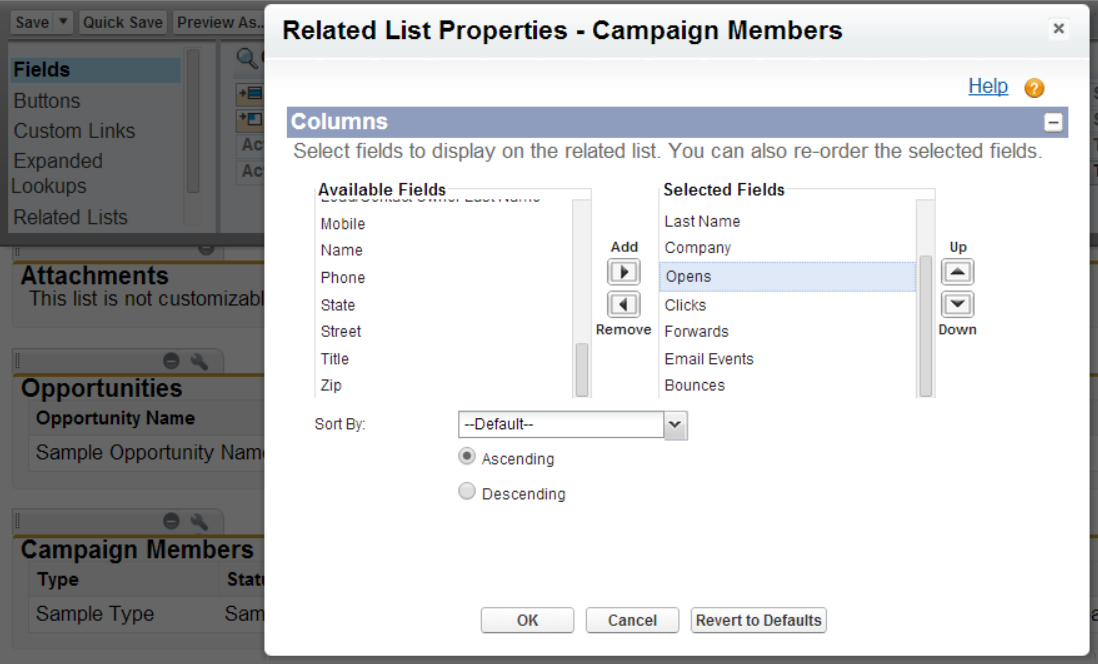
- Campaign Member Page Layout: Add Campaign CazoomiId, Clicks, Bounces, Forwards, Email Events/URLs Clicked. (optional for Enterprise Edition, but make sure username has access to the fields)
- Contact/Lead Page Layout: Add Clicks, Bounces, and Forwards to the Campaign History-related list. (optional, but needed to see the metrics in contact/lead layout.)
Campaign Page Layout
Add the custom SyncApps fields:
Campaign CazoomiId (optional for Enterprise Edition)
Drag Campaign CazoomiId into the Email Campaign Page Layout
- This ensures the unique SyncApps ID is visible on the campaign record.
Campaign Member Page Layout
Add fields such as:
CampaignMember CazoomiId
Opens
Clicks
Bounces
Forwards
URLs Clicked / Email Events
These fields show engagement metrics at the contact/lead level.
- Drag CampaignMember CazoomiId into the Email Campaigns Member Page Layout and any fields you want to report on like Opens, Clicks, Forwards, URLs Clicked/Email Events, and Bounces.
- The Campaign metrics fields in the Campaign History layout (related lists) + Email Events and URLs Clicked will display the metrics.
Contact / Lead Page Layout
Under the Campaign History related list, add:
Clicks
Bounces
Forwards
Email Events / URLs Clicked
That way, when viewing a contact or lead, you can see campaign engagement directly.
- The Click Rate and Open Rate fields are premapped by default and will return the percentage totals to Salesforce. These fields can be overridden to map back to your own fields in Salesforce.
Field Permissions Checklist
Make sure your Salesforce users have access to:
Marketing User permission
Field Level Security for all SyncApps fields (CazoomiId, Opens, Clicks, etc.)
Without proper permissions, fields will not appear even if they’re on the layout.
Article explaining Salesforce permissions in detail here:
How Sync Frequency Works
By default, campaign response metrics are synced:
Every 24 hours.
If you want metrics more frequently, you can adjust this in Step 5 of your SyncApps configuration.
Need some help?
Check out the options below on how you can contact our support team and find the answers you need to help you with your SyncApps integrations.
Help Center & Email is 24/7 to support@cazoomi.com | Live Chat & Phone is scheduled
FAQs
Q: Why aren’t campaign metrics showing in Salesforce?
Check that the fields (Clicks, Opens, etc.) are added to the related layouts and that users have proper field permissions.
Q: Do I need to create fields manually?
If Step 1 of your SyncApps setup enabled campaign responses, the fields are automatically created for you — you just need to add them to the layouts.
Get Started | Login Issues | Pricing
Comments